How to Embed ConvertQuiz on Your Page
‼️ IMPORTANT: For redirects to work, ConvertQuiz host loader script must be included on the page where the quiz is embedded.
If you use our Starter or Master quiz templates, the script is already in place (on the quiz page) of the template funnels — no action is required.
If you use a STARTER template (fastest)
If you cloned a MASTER quizIf you embed the quiz anywhere else (e.g., website page), copy the entire host loader script from the Master template Quiz Page and paste it into a Custom HTML/JS element on your page (then replace the iframe with your quiz’s embed code).
If you use a website page instead of a funnel
If you use a STARTER template (fastest)
Your quiz is already embedded in the Starter funnel. Just go to the same Light/Dark theme as your quiz.
1. Open the funnel step
Sites → Funnels → ConvertQuiz (Light/Dark) STARTER → “Quiz” page (embedded quiz) → Edit.
2. Set the page background
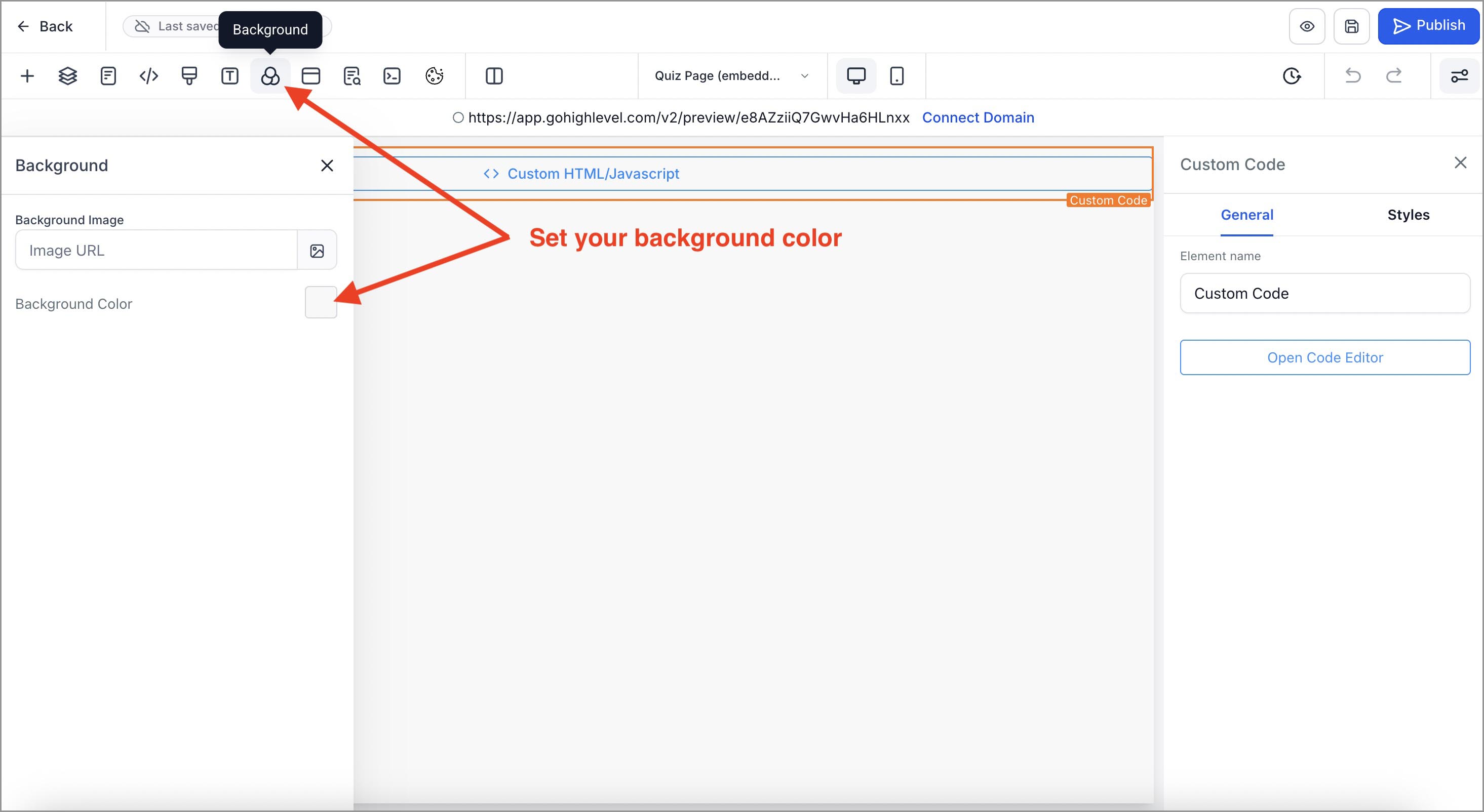
In the page builder, click Background (the 3-circle icon) → set Background Color.
💡 NOTE: the quiz background is transparent; the page sets the visible background.
(click to enlarge)
3. Save & test in the browser
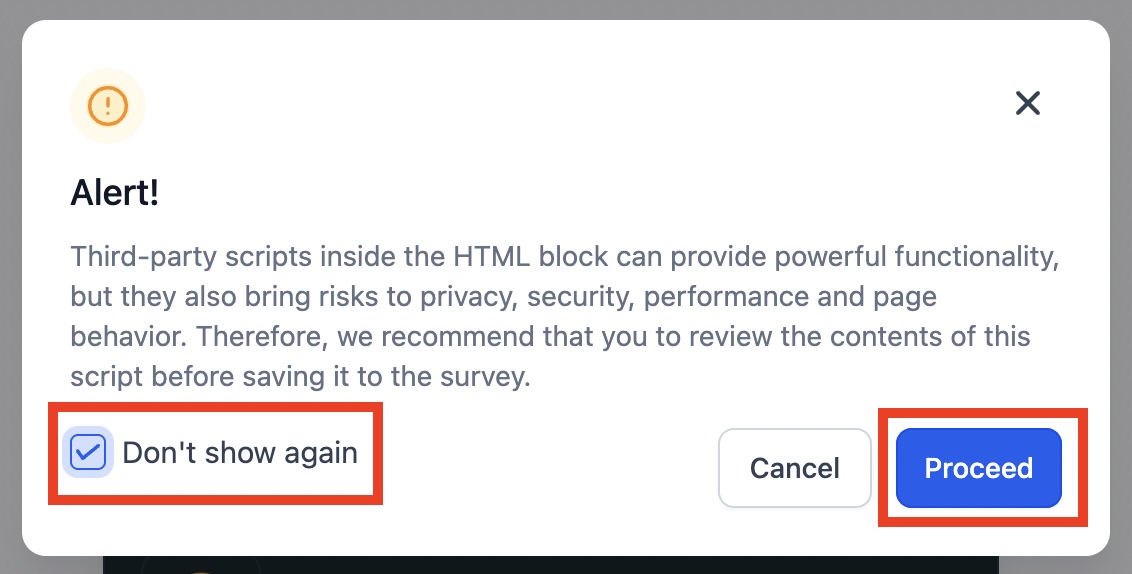
If you see an Alert! banner (“Third-party scripts inside the HTML block…”), check Don't show again and click Proceed.
Open the live page and run through a quick test.
If you didn’t change category names or the opt-in page paths, redirects should work.
If you cloned a MASTER quiz
You’ll embed your quiz with the iframe, plus the ConvertQuiz quiz page loader script that powers redirects and updates.
1. Get your quiz iframe
In the quiz builder, click Integrate (top right) → copy the Iframe Embed code.
2. Use our ready-made MASTER template “Quiz Page” layout
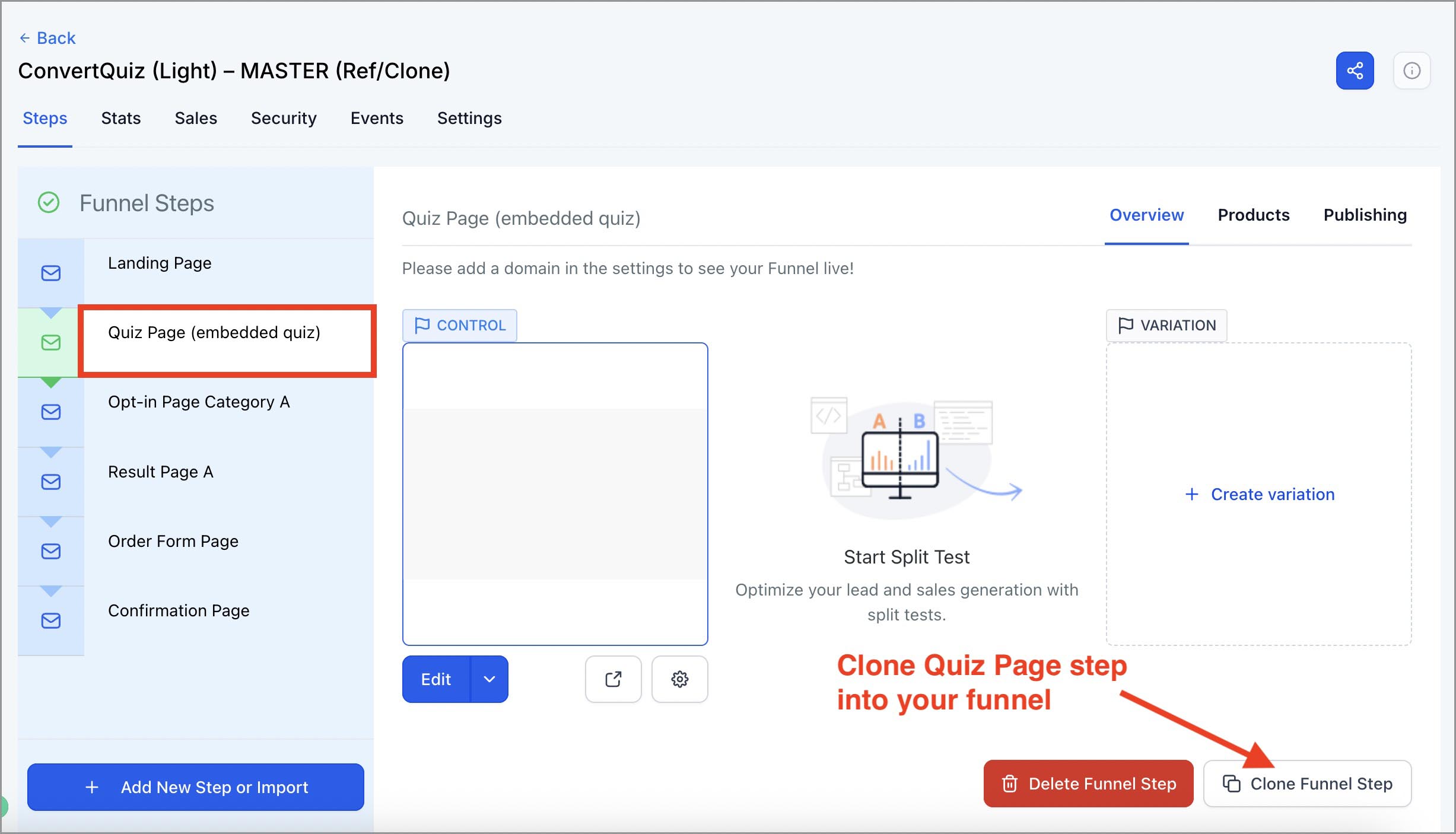
Go to Sites → Funnels → ConvertQuiz (Light/Dark) MASTER.
Clone the “Quiz page (embedded quiz)” step into your target funnel.
(click to enlarge)
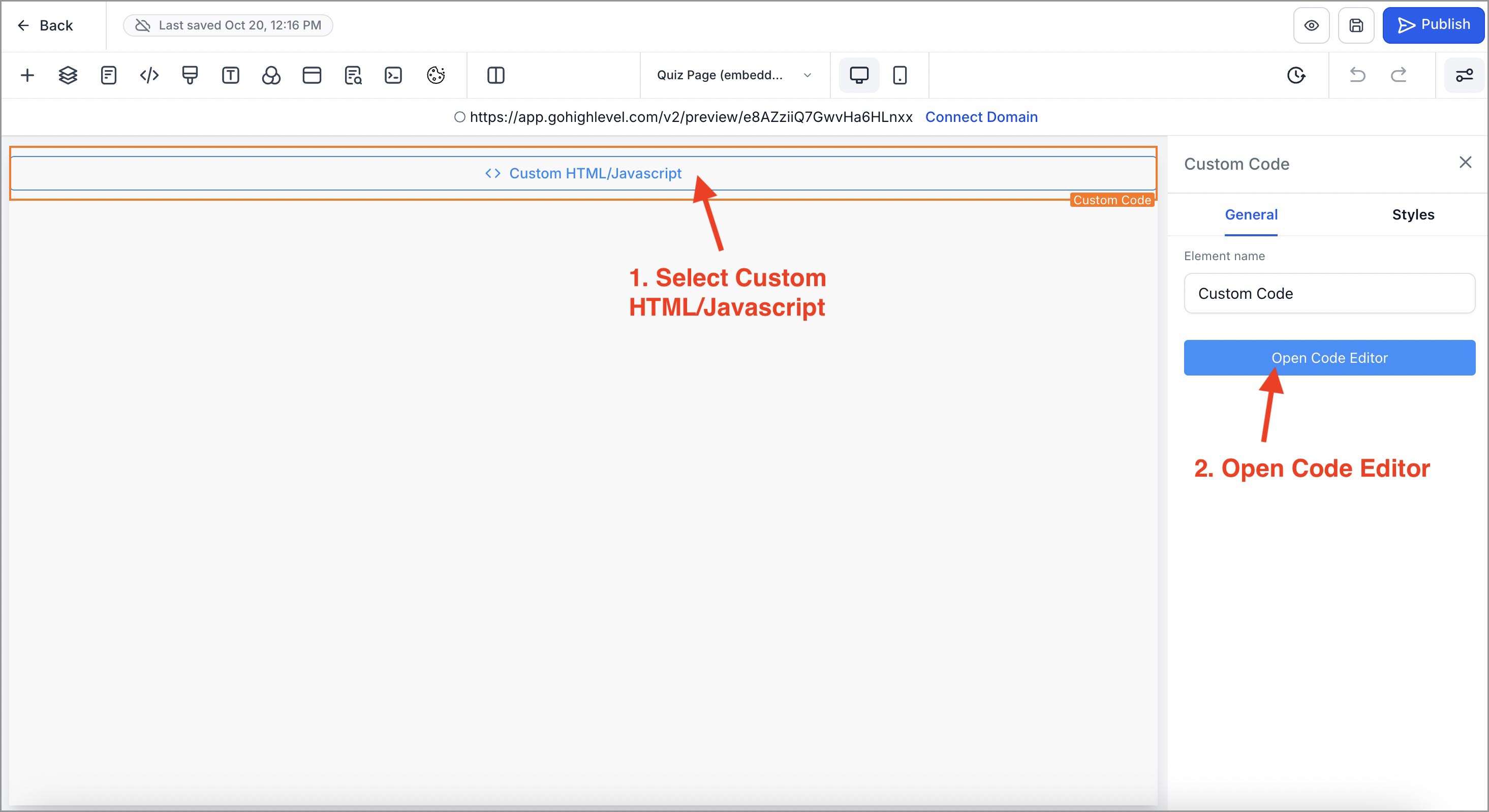
3. Open cloned Quiz page in your funnel → select the Custom HTML/JavaScript element → Open Code Editor.
(click to enlarge)
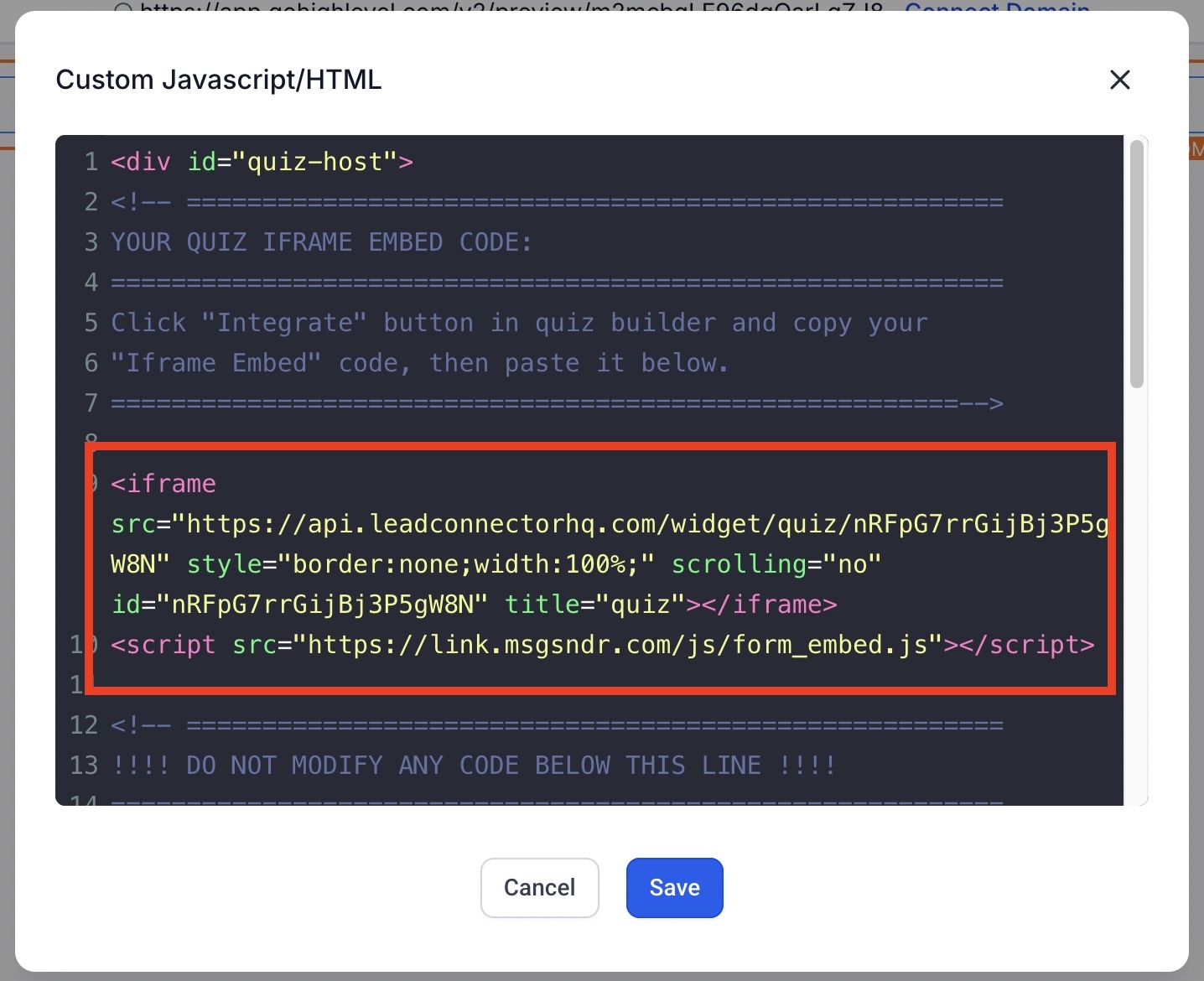
In the editor, replace only your Iframe Embed code of your quiz between the markers:
(click to enlarge)
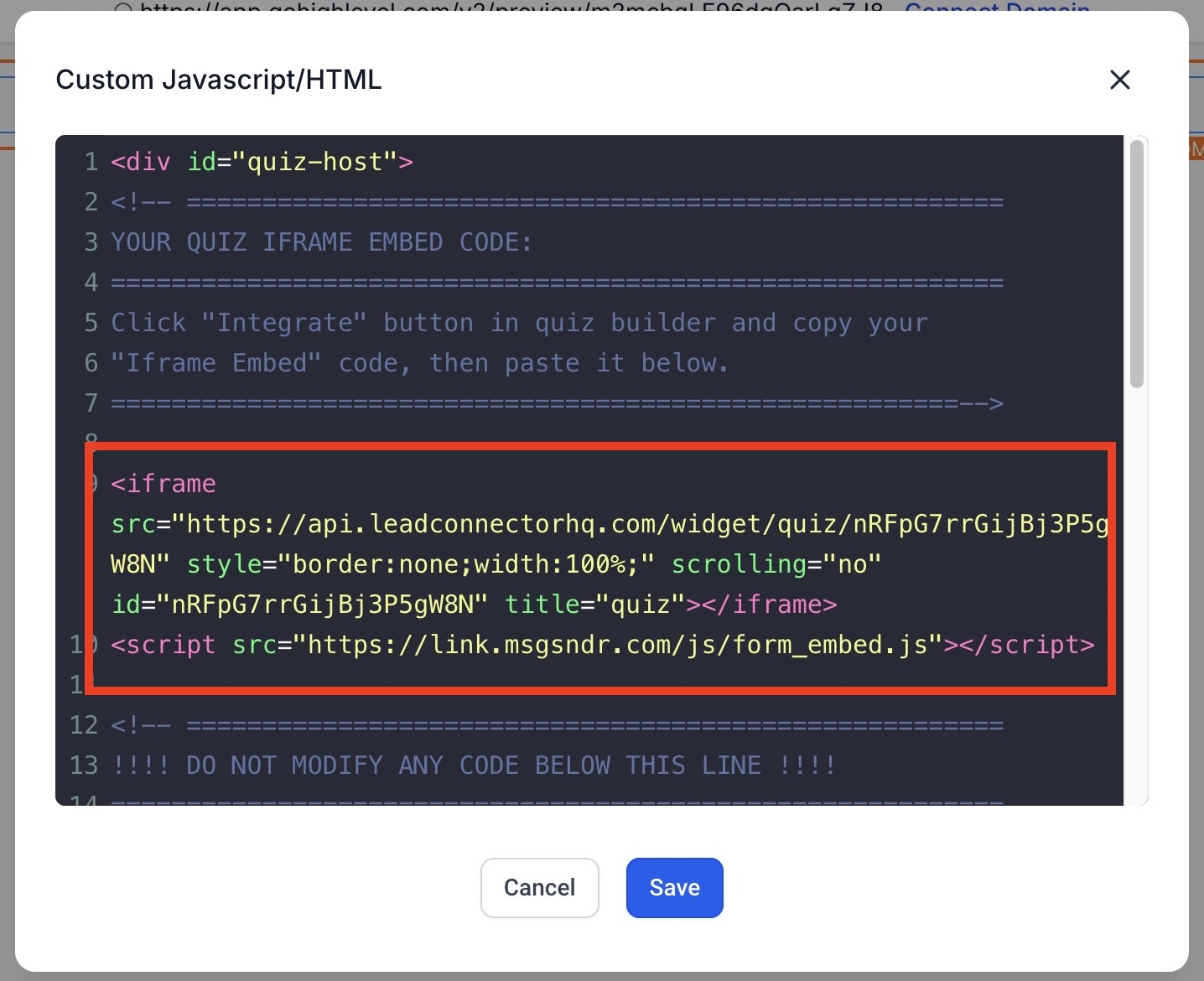
‼️IMPORTANT: Do not edit anything outside the YOUR QUIZ IFRAME EMBED CODE section.
This custom html ConvertQuiz host loader script below DO NOT MODIFY line enables category-based redirects and other ConvertQuiz features and allows us to ship compatibility fixes without you editing your pages again.
Removing or altering it can break redirects!!!
4. Set the page background color
In the page builder, click Background (3-circle icon) → choose your Background Color → Save.
💡 NOTE: the quiz background is transparent; the page sets the visible background.
(click to enlarge)
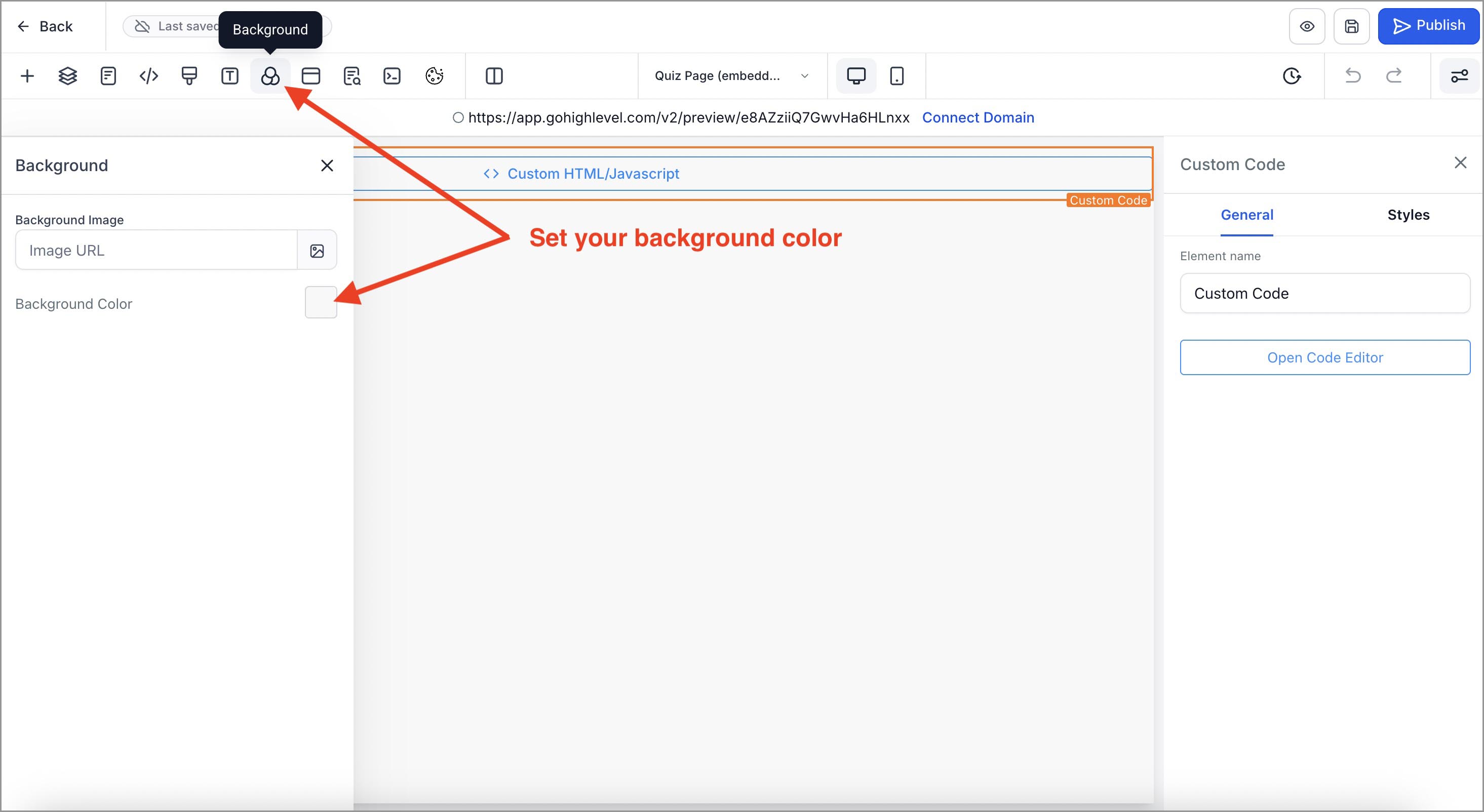
You don't need to set margins or padding. Ready-made templates keep spacing and styling perfect.
5. Save & test in the browser
If you see an Alert! banner (“Third-party scripts inside the HTML block…”), check Don't show again and click Proceed.
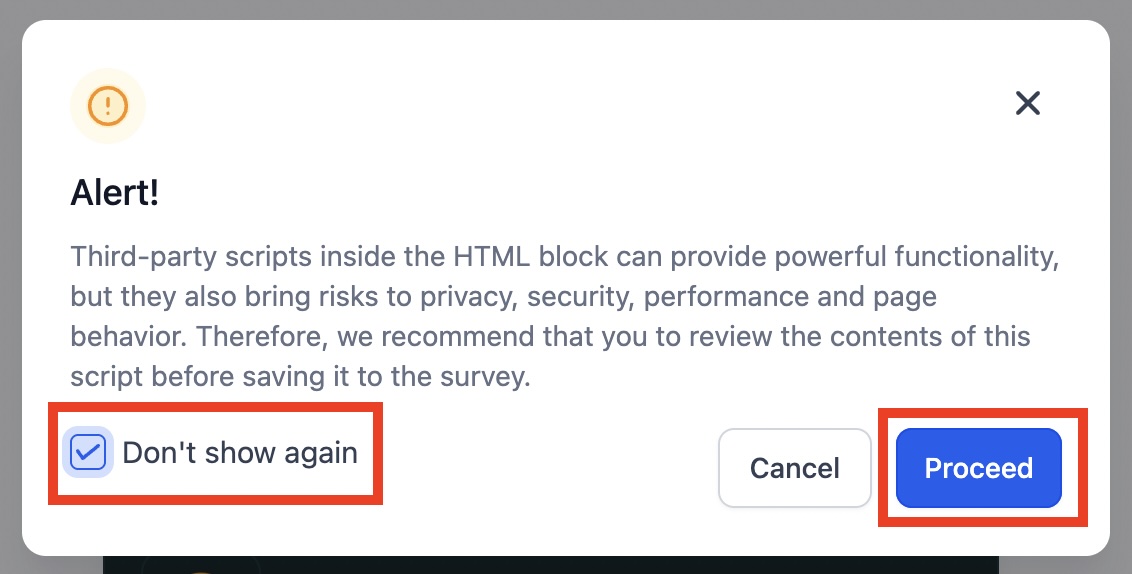
Open the live page and run through a quick test.
💡 NOTE: Make sure that, depending on the redirection method you have chosen, you have set the category names in the quiz correctly. (Article: "How to Create Quiz with ConvertQuiz article " → "4.3 How ConvertQuiz segmentation and redirection work")
If you use a website page instead of a funnel
If you embed the quiz anywhere else (e.g., website page), copy the entire host loader script from the Master template Quiz Page and paste it into a Custom HTML/JS element on your page. Then replace the iframe with your quiz’s embed code.
1. Drop a Custom HTML/JavaScript element on your page
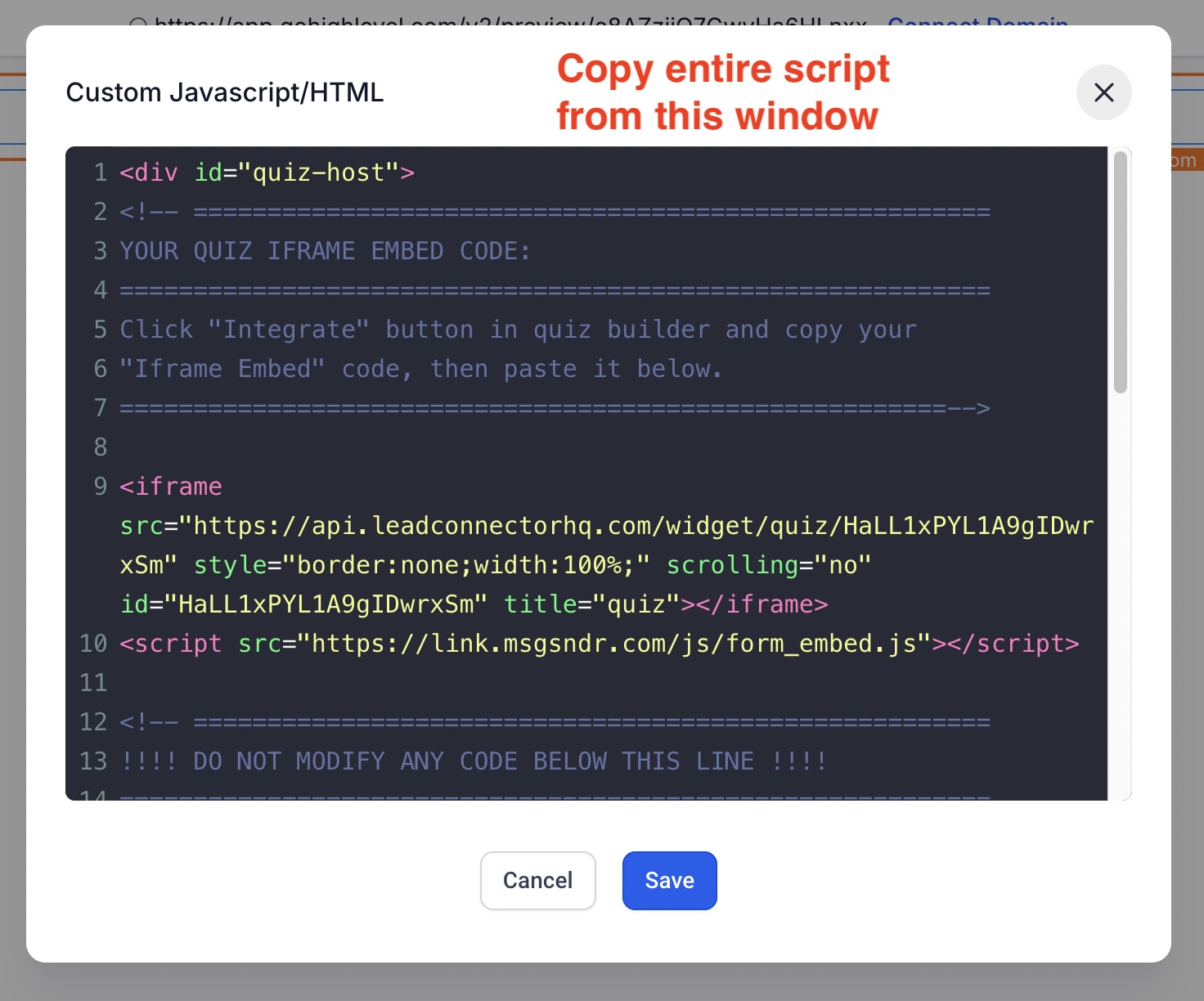
2. Copy host loader script from MASTER template “Quiz Page”
Go to Sites → Funnels → ConvertQuiz (Light/Dark) MASTER.
Open “Quiz page (embedded quiz)” step → select the Custom HTML/JavaScript element → Open Code Editor.
(click to enlarge)
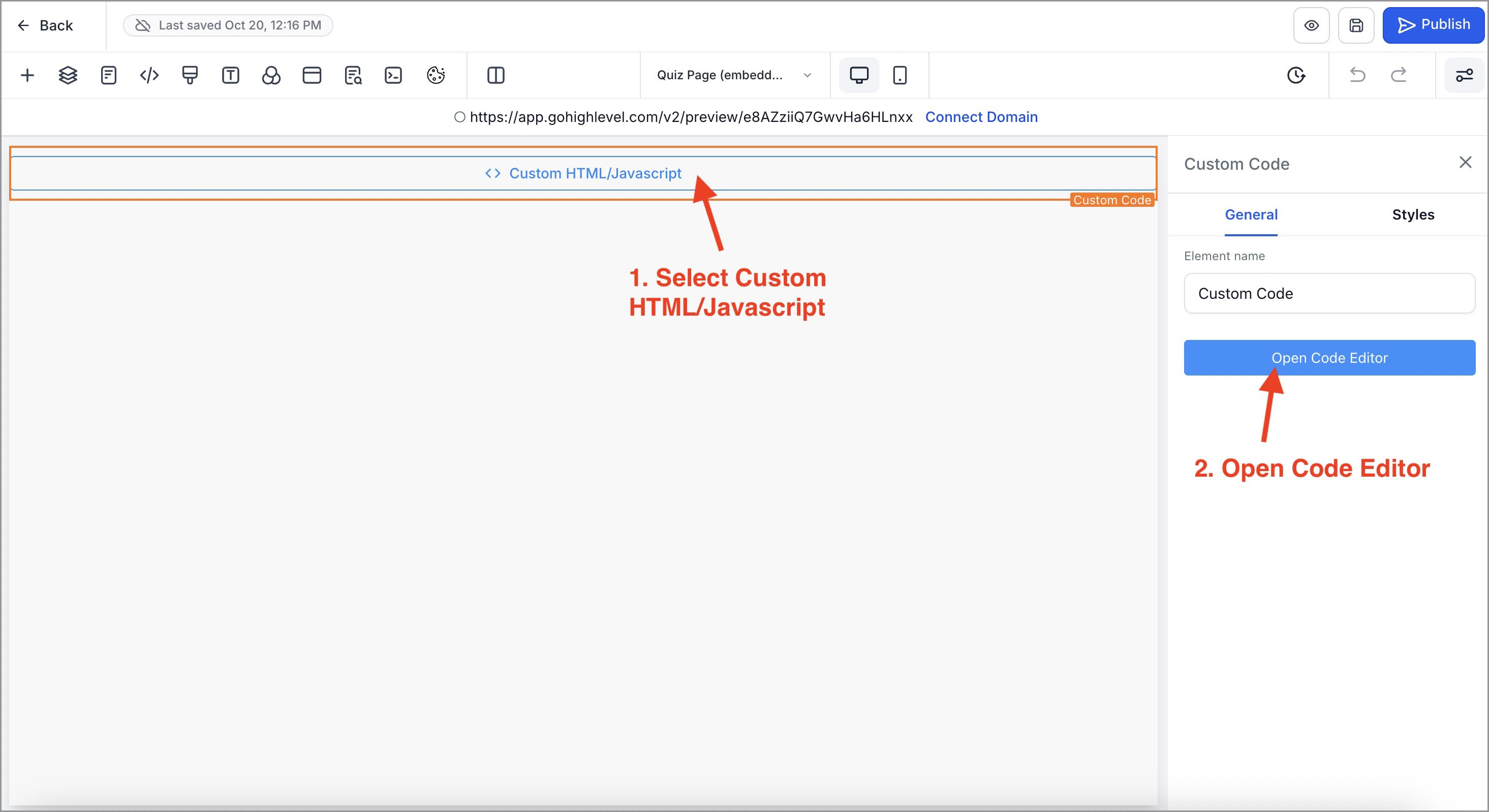
3. Copy entire host loader script and paste it in a Custom HTML/JavaScript element on your page
(click to enlarge)
4. Get your quiz iframe embed code
In the quiz builder, click Integrate (top right) → copy the Iframe Embed code.
💡 NOTE: If you see a warning banner (“Third-party scripts…”), check Do not show again and click Proceed.
5. Replace Iframe Embed code of your quiz in the host loader script:
(click to enlarge)
6. Set the page background color
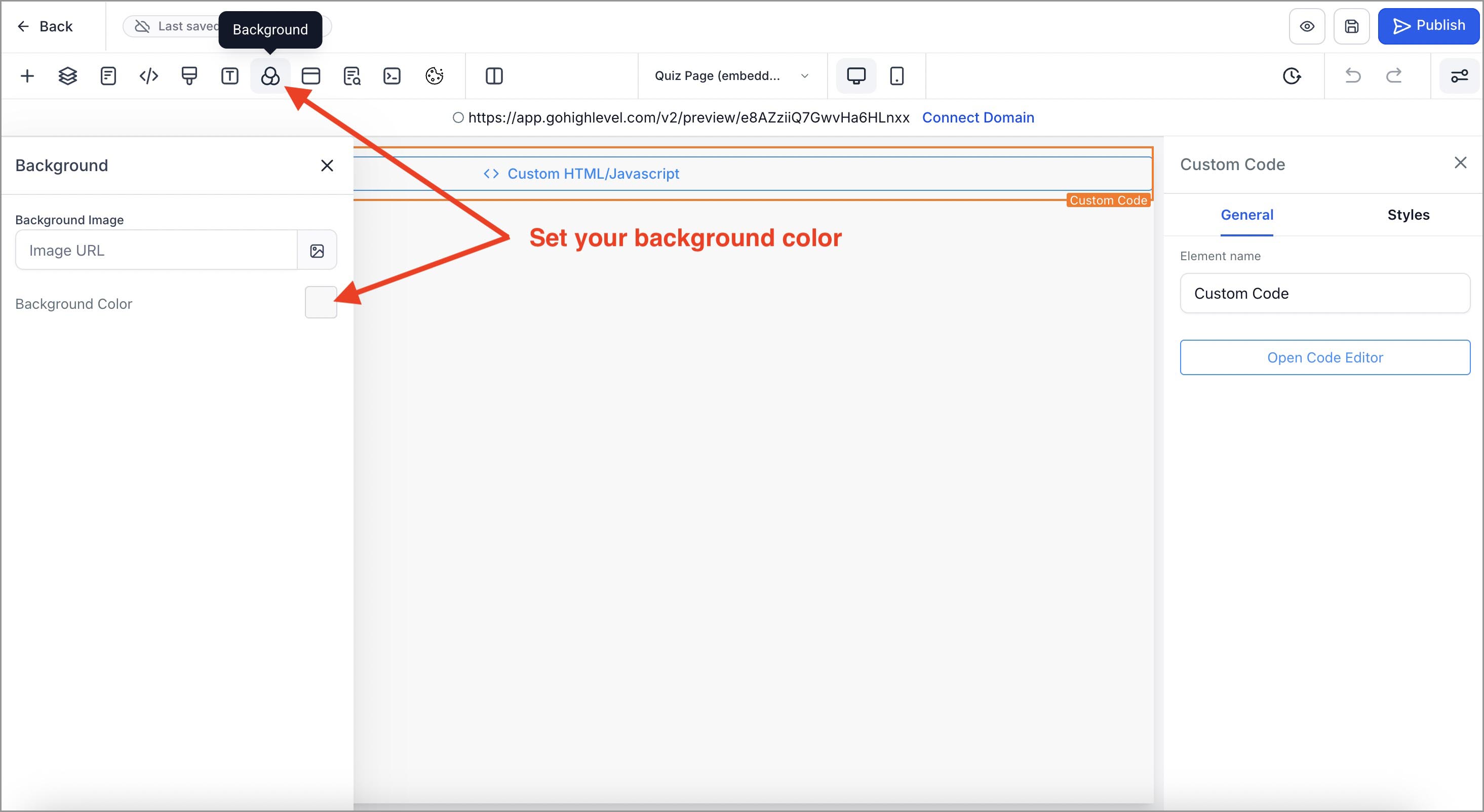
In the page builder, click Background (3-circle icon) → choose your Background Color → Save.
💡 NOTE: the quiz background is transparent; the page sets the visible background.
(click to enlarge)
7. Save & test in the browser
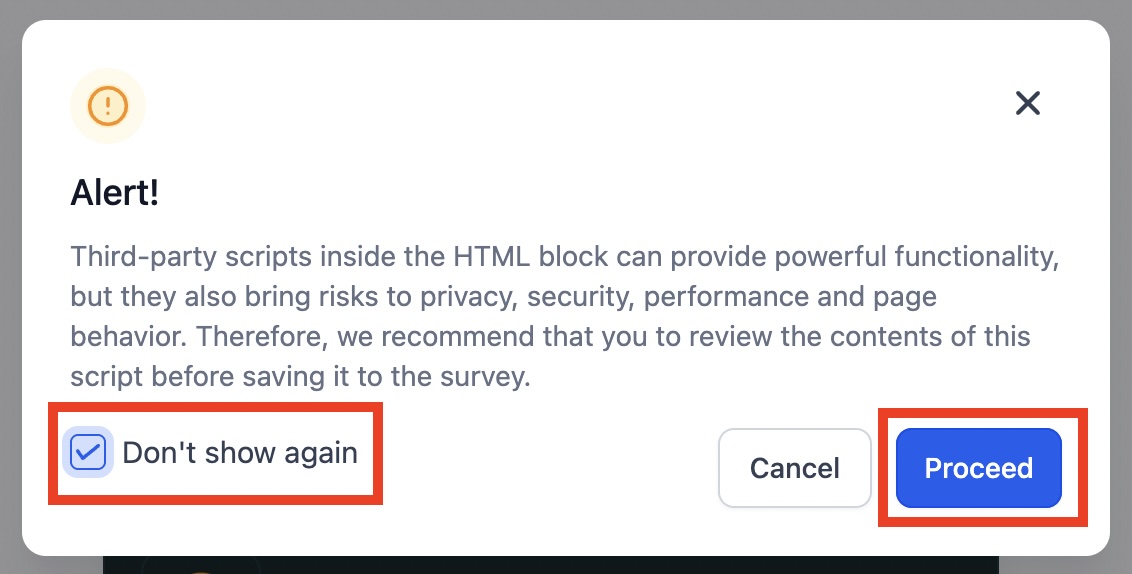
If you see an Alert! banner (“Third-party scripts inside the HTML block…”), check Don't show again and click Proceed.
Open the live page and run through a quick test.
💡 NOTE: Make sure that, depending on the redirection method you have chosen, you have set the category names in the quiz correctly. (Article: "How to Create Quiz with ConvertQuiz article " → "4.3 How ConvertQuiz segmentation and redirection work")
